Boards
Boards organizes shared work into boards, columns and cards. Open Boards in the navigation after your administrator installs and enables the plugin and your account has access.
Hand to Chetty starts paid work in a shared card conversation. You remain the conversation's owner and payer, including when another member continues it. You can also manage cards yourself or ask Chetty to search and update them from an ordinary conversation.
Create and switch boards
- Open the board menu ⋯ beside the board's name and choose New board (a page without any board shows the New board button instead), then enter a Board name.
- Leave Whole team off for a board with selected members, or turn it on for everyone with a human account.
- Optionally choose a Project, then confirm New board.
A new board starts with To do, In progress, Review and Done, named in the language used when creating it. Changing your language later does not rename stored columns. To switch boards, use the arrow next to the board's name at the top of the page.
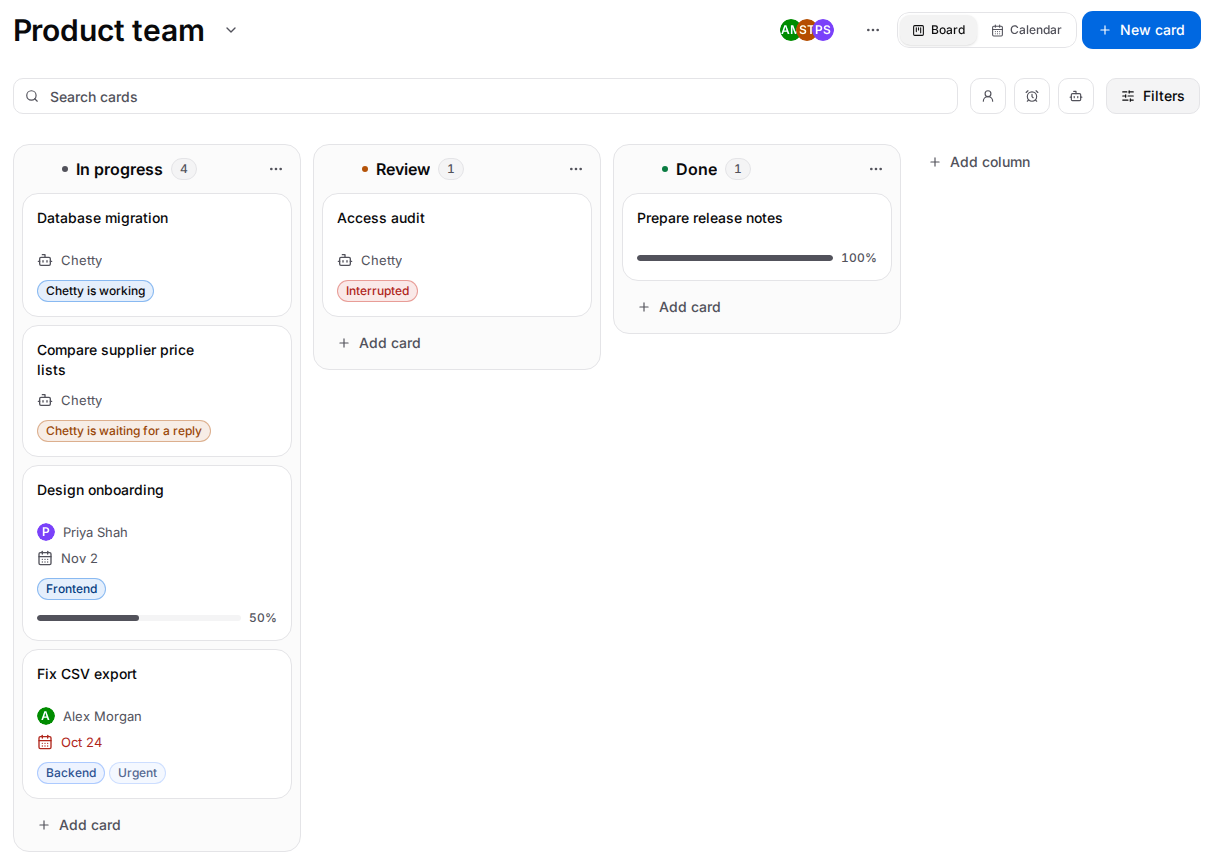
Example of a custom board with three columns; new boards start with four.
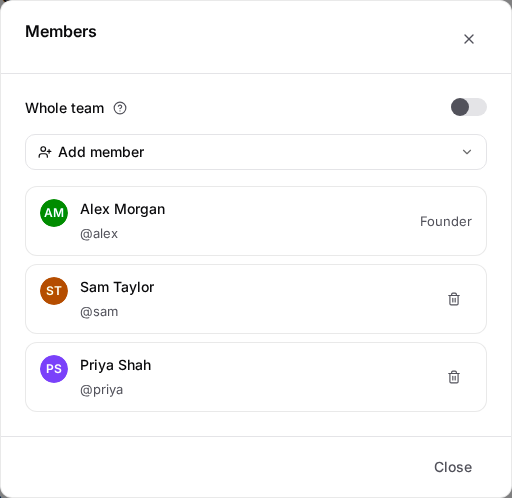
The linked Project is shown with its icon beside the board's name. Click the members' faces to open Members. The board menu opens a new board, members, labels, archived cards and, for the founder or an administrator, renaming, the Project link and deletion. New card conversations run in the linked Project. Changing this link does not move an existing conversation to another Project.
Members and access
- Any member can add people through Members → Add member, edit cards, manage labels, comment, attach files and archive or restore cards.
- Only the founder or an administrator can manage the board and its columns, remove members or permanently delete cards.
- Whole team includes current human accounts. To manage members individually, the founder or an administrator first turns it off; the existing people remain members.
- Removing a member clears their assignments on this board. Deleting an account preserves authored comments and history with a deleted-account label, but removes files uploaded by that account.
- Administrators can open boards without joining. Chetty acts with exactly the rights of the person writing the message, including an administrator's.
Only human accounts can be board members; chatbot accounts cannot join. People added to a board receive an alert. Cards outside your board access are not shown. Access to the linked Project and access to the board are separate.
Board membership changes update linked card conversations immediately when idle. During ongoing work, conversation membership changes take effect only after the whole current turn finishes, before another starts. The board change is already saved; synchronization does not start paid work. Pending membership updates recover after a restart without resending the work. Deleting an account still removes that account's access immediately.
Columns and moving cards
Use Add card under a column, type a title and press Enter. The field stays open for another card; Escape closes it. New card at the top adds to the first column; on a phone it is the plus button.
Each card shows its title, its assignee, its due date (in red once it is overdue), Chetty's state, its labels and, when it has a checklist, how much of it is done. Priority, attachments and comments are in the card's detail.
Drag a card with a mouse to reorder it or move it to another column. On a phone, use its drag handle (with a mouse it appears when you point at the card); a long press on the card opens its menu instead. For a keyboard move, focus the handle, press Space or Enter, use the arrow keys, then press Space or Enter to place it. Escape cancels the move. Left and right move between columns; up and down move within a column.
The founder or an administrator can add, rename and reorder columns. In a column's menu, Role sets Review, Done or No role. Each board can have at most one Review column and one Done column. A column can be deleted only after its cards have been moved elsewhere. Cards in a Done column are not marked overdue and do not receive due-date reminders.
Card details and bulk actions
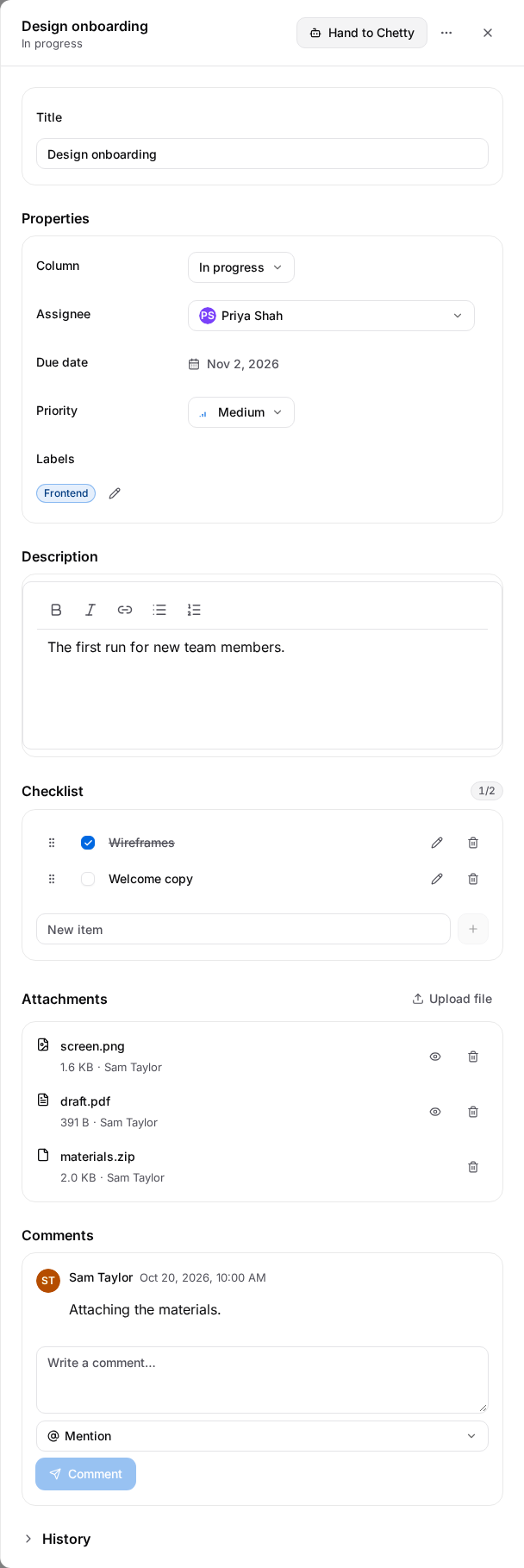
Open a card by its title. Its detail appears on the right on desktop and fills the screen on a phone.
- Edit the title and formatted description directly; changes save automatically. Check the save indicator before leaving.
- Set the column, a member as assignee, due date, priority and labels. Choosing Chetty as assignee does not start work and is currently refused outside handoff.
- Add checklist items, mark them complete, rename, reorder or remove them.
- Open History to see recorded changes.
Right-click a card, or long-press it on a phone, for opening, renaming, moving, assigning, labels, priority, due date and archiving. Tick cards with the checkbox beside their title (with a mouse it appears when you point at the card) for bulk move, assignment, labels or archive.
Search cards by text, or use the three buttons beside the search: My cards, Overdue and Handed to Chetty (point at an icon to see its name). Filters narrows the board by assignee, label and priority, and each active filter appears as a chip you can remove. Filters change what is shown, not stored card order.
Archive hides a card without deleting its contents. Open Archived cards from the board menu to restore it. Permanent deletion asks for confirmation and cannot be undone.
Calendar
Switch Board | Calendar at the top of the board to see the cards on their due dates, one month at a time; the address keeps the view, so a link or a refresh opens the calendar again. In Czech and Slovak the week starts on Monday, in English on Sunday. Use the arrows to change the month and Today to return. Today's date is highlighted.
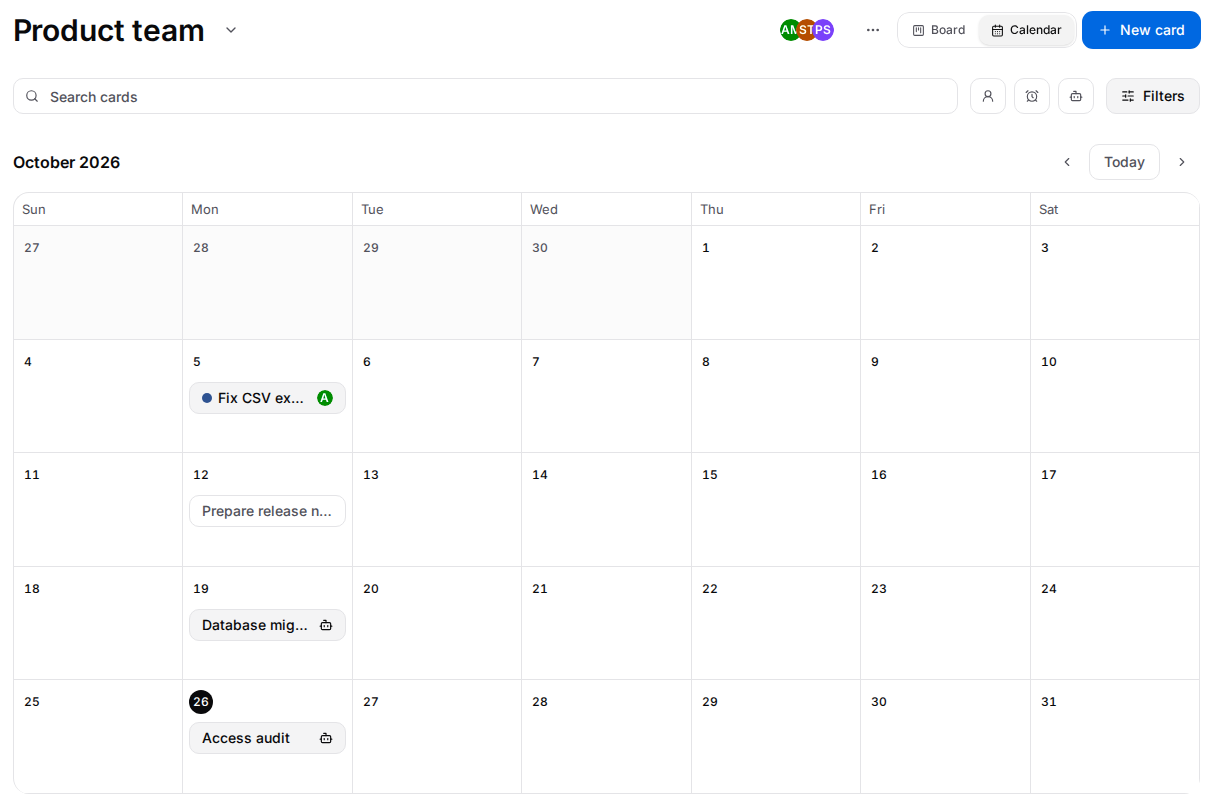
- Each card with a due date appears on its day with its first label's colour, its title and the assignee's face. A day with more cards shows +N; click it to see them all.
- To write a card into a day, point at the day and click +, or click the day's empty space, type a title and press Enter. The card lands in the board's first column with that due date. New card at the top starts on today.
- Drag a card to another day to change its due date. Without a mouse, and on a phone, open the card and change its Due date.
- Click a card to open its detail; closing it returns to the calendar.
- Search and filters work as on the board.
On a phone the calendar is a list of the month's days that opens at today, each with its cards and a +.
Attachments and comments
- In Attachments, choose Upload file.
- Open Preview for PNG, JPEG, GIF, WebP or PDF files; download other file types.
- Write a comment and use Mention to pick a board member. The selected mention chips determine who receives an alert; typing a name alone is not a notification.
Each attachment can be up to 5 MiB. Larger files are refused before uploading.
Assignment and mention alerts open the card. An assigned, unfinished card can also remind its assignee when it is due tomorrow or overdue. Archived cards and cards in Done columns are excluded.
Use Boards in a conversation
You can ask Chetty, for example:
- “Show my overdue cards on the website board.”
- “Create a card for Jana to check the proposal.”
- “Add a checklist and a comment to this card.”
The plugin provides KanbanSearch for visible boards and filtered cards, KanbanRead for details, and KanbanUpdate for permitted changes. Image and text attachment content is bounded; PDF and other binary attachments are listed by name and size rather than read as document content.
Chetty acts for the person writing the message and can do on the boards exactly what that person can do, and nothing more. It can create a board for you (you become its founder), create and edit cards, move or assign them, manage labels and checklists, comment, archive and restore. As a founder or administrator you can also ask it to manage columns, members and board settings or to delete cards and boards. When Chetty hands a card over to itself, the work runs under your account and you pay for it, exactly as when you choose Hand to Chetty. Adding a person and assigning a card are separate changes.
To give Chetty the work on a card:
- Open the card and choose Hand to Chetty. Your account must have access to Boards and access to the linked Project.
- Chetty prepares one shared conversation, adds the board's members and starts the request under your account. The card is assigned to Chetty and shows Chetty is working. A card in the first column moves to the next column without a special role, if there is one.
- Choose Open conversation to read the work or continue it. Members can write there; all later work in this conversation is still billed to its first owner. There is no second handoff.
- When Chetty marks the card finished through its card tool, a summary appears as a comment and the card moves to the Review column. Without a Review column it stays in its current column. A later conversation turn does not clear the finished state.
A settled reply without a card finish shows Chetty is waiting for a reply. Stopped or failed work changes a working card to Interrupted. Continue directly in the conversation. Waiting, interruption and completion alerts link to the card.
If starting work is refused, open the card for the localized explanation. An already prepared conversation and its first payer are retained even after refusal; use Open conversation rather than attempting a new handoff.
Availability and troubleshooting
After a hard crash, the status shown on a card may lag behind what happened in its conversation. Chetty does not automatically send the work again. Open the conversation to check the actual result and continue there; a later completed conversation turn can update the card's status. Do not treat an unchanged card badge as proof that work never started.
A crash during handoff may also leave a prepared conversation without a started request. Continue in that conversation rather than handing the card over again. If the conversation is paused, newly written messages are stored without starting agent work or updating the card. Resume the conversation and continue there.
If a board or card is missing, check your membership or return to the board picker. If saving fails, refresh the board before repeating the action: a notification failure may occur after the change itself was saved. If filters show no cards, clear them. If a linked Project is deleted, the board and its cards remain and the link is removed.