Change the language and appearance
Chetty speaks Czech, Slovak and English, and it can be light, dark or larger. Everything here is a choice for one person and one browser, so your colleague's screen stays as it is.
Change the language
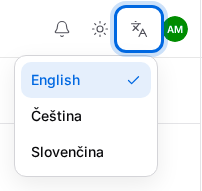
- In the top bar, click the button with the language icon beside your picture. It is called Language and it shows the code of the language in use.
- Pick English, Čeština or Slovenčina. The whole app switches at once, including the guides.
- Stay signed in and your language also applies to alerts and phone notifications.
Switch between a light and a dark design
The button with a sun or a moon switches the design, for example Light and Dark. Its tooltip names the design you are on (Skin), and each click moves to the next one. If the button is not there, only one design is allowed and there is nothing to switch.
Make the text bigger
- Click your picture in the top right corner.
- In the Appearance group, drag Interface scale between 80 % and 150 %.
- Not happy with it? Reset returns the size to 100 %.
The size belongs to this browser and device, so a large screen at your desk and a phone in your hand can each use their own.
Calm the animations
Visual effects offers Auto, Full range, Reduced and Off. Auto follows the reduced-motion setting of your operating system, so Chetty respects a choice you already made. Off removes the animations completely.
On a phone
The top bar keeps the same buttons, but on a phone they show only their icons. The language one is a small symbol of two letters, the design one a sun or a moon, and your picture is on the far right. The display preferences wait in your account, exactly as on a computer.