Send a conversation to a colleague
To work with a colleague in the same conversation, invite them. Any human account in this Chetty instance can join, even without Project membership. To send a saved copy instead, export it as a page and send the file; sending a link alone grants no access.
Save it as a page
- Open Conversations and find the conversation you want to send.
- Choose More actions at the end of its row.
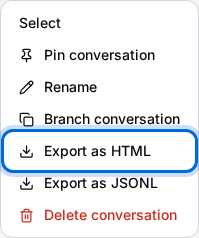
- Choose Export as HTML.
- The browser downloads one file. Open it and check that everything you mean to send is there.
The file is a page with the messages in order, so it reads like the conversation itself.
Send the file
- Write the e-mail in your usual mail programme and attach the downloaded file.
- Send it as you would send any document.
- Tell the colleague that it is a saved page; they open it in a browser and read it there.
For several conversations at once, choose Select, tick the ones you want and then Export selected. Each conversation downloads as its own file, so your browser may ask you to allow more downloads.
When a shared Project fits better
If you and the colleague keep working with the same documents, use a shared Project. Files there are shared with its members, so nobody has to attach them to an e-mail.
What is not shared
- A conversation stays with its owner. Invited guests can open it, answer inside it and find it in their own list; exporting it does not invite anybody.
- A Project shares files, not conversations. Members do not see each other's private conversations.
- The address in your browser points to your conversation. Passing it on gives nobody access.
Administrators can find conversations from all accounts in the All conversations overview.
Related guides
Continue with Rename, pin, save or delete a conversation, Invite a colleague to a Project and Find an earlier conversation.