Get alerts and notifications on your phone
Chetty can notify you when a reply is ready or something needs your attention. Choose notification kinds once for your account; enable push separately on each device.
Turn on notifications for a device
- Open Account → Notifications.
- Under This device, enable Push notifications.
- Allow notifications when your browser asks.

Repeat on each phone, laptop and browser you use. Turning this device off does not disable the bell or your other devices.
On an iPhone or iPad, open Chetty in Safari, choose Share → Add to Home Screen, then open it from the new icon. Enable notifications there. Home Screen notifications require iOS or iPadOS 16.4 or newer. The ? next to the device status explains the next step.
Choose which notifications arrive
Under Notifications, choose Manage. Search by name or select a group, then leave checked only the kinds you want and choose Save changes. Cancel or Escape discards your edits.
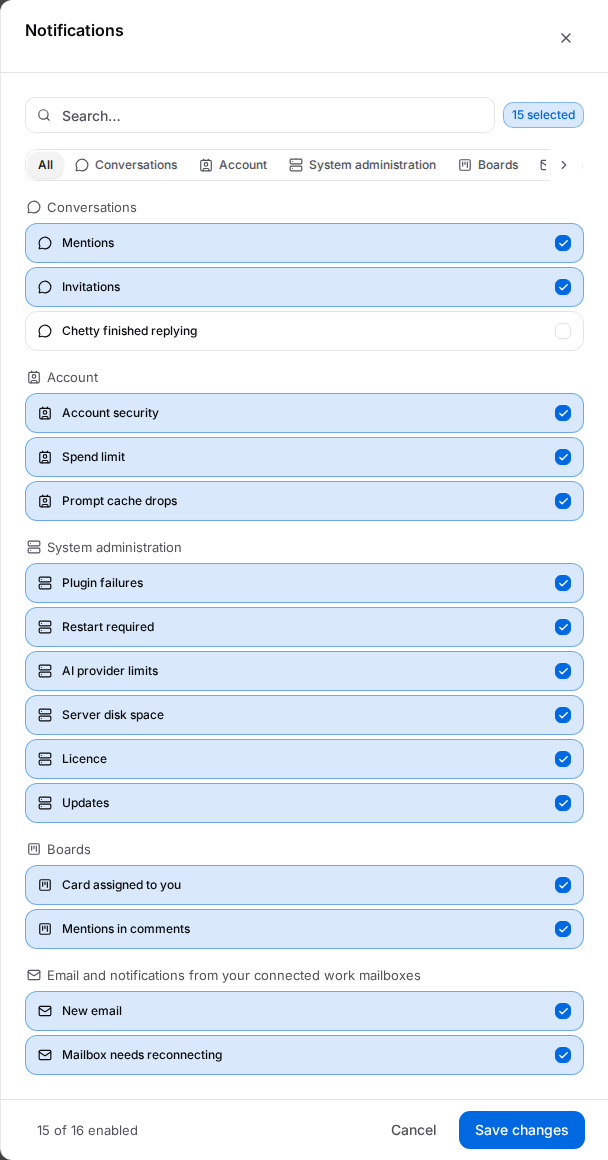
Every kind is enabled by default, including newly added kinds. A muted kind reaches neither the bell nor any subscribed device. The choice applies to your whole account, not just this browser. Existing messages are not removed when you change the selection.
The picker contains Conversations, Account and the plugins you may use. Administrators also see System administration. Calls keep their separate switch under Account → Voice.
Read the alerts in the app
Open the bell to see current alerts. Mark all read clears unread marks, Mark read acknowledges one row, and Dismiss hides a row.
An invitation or mention starts with the other person’s picture or initials. Other alerts use an urgency icon. Dismissing a message does not fix its cause; an ongoing problem may produce another alert.
If no notification arrives
- Blocked: allow notifications for the Chetty address in your browser’s site settings, then return to Account → Notifications.
- Turn on again: select this action to reconnect the device after the notification key changes.
- Add Chetty to Home Screen: use the Safari steps above and open the installed icon, not a browser tab.
- Update iOS: install iOS or iPadOS 16.4 or newer.
- Not supported: use a supported browser; the in-app bell still works.
- Check that the device switch is on and the kind is checked in Manage. Also check the operating system’s notification and Focus settings.
- If an enabled kind is missing from the bell too, ask an administrator to check the service that should have raised it.
Device notification controls are disabled while impersonating another account.