Dictate a message
Do not feel like typing? You can say your message out loud, and Chetty writes your words into the message field. You read the text before you send it, so nothing leaves by accident.
Before you start
- You need a microphone. Laptops and phones have one built in; otherwise any headset with a microphone will do.
- Dictation has to be switched on for you. If you cannot see the option described below, read If it does not work.
Dictate the message
- Open Chat and the conversation you want to write in, or start a new one.
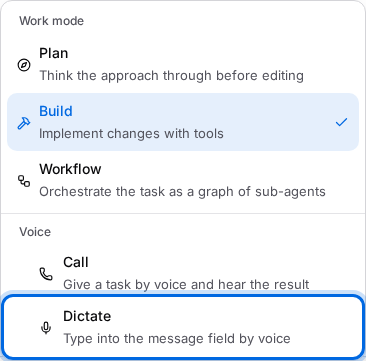
- Next to the message field, click Options. On a phone this button shows only an icon with sliders.
- In the Voice group, choose Dictate.
- The first time, the browser asks whether it may use the microphone. Allow it.
- Speak normally, as if you were dictating to a colleague. On a computer the recording time runs in the button; on a phone a small dot pulses.
- When you finish, click the same button, which now carries a tick and reads Done. You see Transcribing… for a moment.
- Your text appears in the message field. Read it, fix what needs fixing, and click Send.
You can also send while dictation runs: the send button ends the dictation first and sends what it heard. And on an empty message field you can press and hold the send button: after a moment dictation starts, and it ends when you let go.
When dictation stops
Dictation ends by itself when you stop talking. How long the silence may last is set in Account → Voice under Stop dictation after a pause: 3, 5, 10 or 20 seconds, or Never. The default is five seconds.
Whatever you dictated stays in the message field when dictation ends, so you can correct it and send it in your own time. The cross beside the button throws away the dictation instead.
Dictation is charged by the minute of sound.
If it does not work
- Microphone access was denied. Click the lock icon next to the address, allow the microphone there and start again.
- Dictation is already active for your account. Another tab of Chetty is listening; end it there before you start here.
- Dictation lost its connection. Check that you are still online and try again.
- The microphone could not be used. Pick another microphone in the settings of your computer or phone, or plug in a headset.
- If the Options menu has no Voice group, dictation is not switched on for you. Ask your administrator for Voice access.